MAAF NC CREATIVE DESIGN DALAM PROSES PERBAIKAN

we expect you to be patient for the inconvenience thanks.This theme is Bloggerized by jayus ernanta - SILAHKAN KUNJUGI CHANEL YOUTUBE,TIKTOK,DAN INSTAGRAM KAMI UNTUK UPDATE TERBARU

MAAF NC CREATIVE DESIGN MASIH DALAM PERBAIKAN

we expect you to be patient for the inconvenience thanks.This theme is Bloggerized by jayus ernanta - SILAHKAN KUNJUGI CHANEL YOUTUBE,TIKTOK,DAN INSTAGRAM KAMI UNTUK UPDATE TERBARU

MAAF NC CREATIVE DESIGN MASIH DALAM PERBAIKAN

we expect you to be patient for the inconvenience thanks.This theme is Bloggerized by jayus ernanta - SILAHKAN KUNJUGI CHANEL YOUTUBE,TIKTOK,DAN INSTAGRAM KAMI UNTUK UPDATE TERBARU

MAAF NC CREATIVE DESIGN MASIH DALAM PERBAIKAN

we expect you to be patient for the inconvenience thanks.This theme is Bloggerized by jayus ernanta - SILAHKAN KUNJUGI CHANEL YOUTUBE,TIKTOK,DAN INSTAGRAM KAMI UNTUK UPDATE TERBARU

MAAF NC CREATIVE DESIGN MASIH DALAM PERBAIKAN

we expect you to be patient for the inconvenience thanks.This theme is Bloggerized by jayus ernanta - SILAHKAN KUNJUGI CHANEL YOUTUBE,TIKTOK,DAN INSTAGRAM KAMI UNTUK UPDATE TERBARU

Aug 26, 2011

How to Reduce Computer Problems

How can I prevent Computer problems? This is a question that people have asked me many times. The entire process of reducing Computer problems can be bundled under the banner of Computer Preventive Maintenance.
It is not rocket science and you don’t have to be an IT professional to keep your PC in a good shape. Any computer user can follow guidelines I have mentioned below and can reduce their PC problems dramatically.

·  Use a good anti virus program. This is the most important piece of work in preventive maintenance. Installing the anti virus program is not good enough. You should do following as well.
·  2
Check the virus definitions date regularly and see whether it is up to date.
·  3
Set-up your PC to Download and install “Windows Updates” automatically.
·  4
Windows updates include Operating System patches for bugs and PC security related issues. These patches can reduce many unknown computer problems.
·  5
Install a good anti Spyware program to detect Spyware.
·  6
Install a Personal Firewall. Most of the anti virus programs are bundled with a Personal Firewalls these days. Personal firewall is a barrier between your PC and the outside world. This can prevent your PC from hackers and Spyware tools.
·  7
Uninstall unnecessary programs installed in your PC.
·  8
Perform Scandisk periodically to check the Hard Drive.
·  9
Delete temporary Internet files every month.


Repair Slow Computer and Speed Up Your Windows OIperating System


Repair Slow Computer and Speed Up Your Windows OIperating System
Get Rid Of All Malware and Registry Corruption and Get All Your Drivers Up To Date At the Same Time ... In Other Words, Fix The Problems That Cause 99.2% of All Computer Performance and Slowness Issues in Minutes Using The Great Computer Tool; PC Health Advisor!
As a PC repair person, the four questions I am asked most by computer owners  are:
“Why has my computer slowed down so drastically?
"Why does my computer pop up error messages?” and...
“Is there anything I can do to get my computer back to its old self?”
"How can I speed up Windows?"
There are three possible reasons a PC will slowdown and commit errors.  However, none of these reasons are due to any problem with the computer itself. The trouble that usually causes computers to become slow and develop performance issues, such as frequent crashing and error message pop-ups, is a problem with the operating system. It would be very unusual if the cause of slow computer performance turned out to be a bad RAM stick or a bad microprocessor. When tracking down the culprit causing computers to behave badly we often look to the following:
First, there could be spyware present in the PC.  If you have a spyware cleaner that is something other than an old, cheap or free, and you have been using it regularly, your PC problems are probably not due to spyware. However, if you need a free spyware scan to see if you have parasites present in your system, I recommend you get one very soon. The reason Spyware/Malware slows down a computer is Malware is a type of software and software uses computer resourses when it is running. Spyware/Malware is always running in the background when it is present. More details on getting a Free Spyware Scan in a moment...
Secondly, there could be registry corruption in the Windows operating system.  Registry corruption causes more computer slow downs than anything else. Corruption builds up in a Windows registry unprovoked and without warning. This will raise havoc with a computer's performance! It does so because it tells the operating system to do things that are counterproductive. This wastes the computer's time and makes it appear as if the computer is slow. The best antidote for this is to get a free registry scan. More on this in a moment, too...
Thirdly, is the possibility of a mismatched or out dated device.  We usually don't look here until we are sure there is no registry corruption or spyware.  However, a problem driver wll cause the same exact troubles registry corruption will and Spyware/Malware will, without actually spying on you, of course.
Namely, the problem a bad driver will cause will be a slow, poor performing computer. The point is; if you believe your computer may have a driver mismatch or a bad driver you can get a free driver scan with the same piece of software that will scan your PC for registry corruption and Spyware/Malware!
Yes, that's right! You no longer need a Spyware/Malware cleaner and a registry cleaner and a driver scanner/updater. We now have one piece of software that does it all. You can now get a free computer scan with PC Health Advisor and it will scan for Malware/Spyware, registry corruption and bad, missing or outdated drivers!
Back to the question "Is there anything I can do to get my computer back to its old self?" Yes, there sure is! In fact, now it is easier than it ever has been before.
Through the years, I have changed by recommendations on how to keep a computer up to speed. I have done so a few times. Of course, I have always recommended people keep spyware, malware and viruses out of their computer. Even though these things steal resources and slow down the computer, the big issue with spyware, malware and viruses is they can steal information about you and this will hurt you while it is destroying your computer.
There was a time registry cleaners were unavailable. When some one's registry needed to be cleaned I, or another technician, would have to do it manually. Cleaning a registry manually was a lot of work. It was also something that came with a certain amount risk because if it was improperly done, it could ruin the operating system altogether.
If this happened you would have no other choice but to re-install Windows. When you did you would lose all your information that was saved to the hard drive. Of course, you would only have lost some time if you had been backing up your files everyday.
Registry Corruption Used To Go Unnoticed Until It Was Too Late
Fortunately, registry corruption in older operating systems, such as Windows 95 and Windows 98, was not nearly as big a problem as it is today. The reason for this is everything was a lot smaller back then. With today's huge files, registries have to be kept in perfect condition or the computer will suffer significant slowdowns.
Many times, the solution in one of these older computers was, as we elluded to before, to reinstall the Windows operating system altogether. Perhaps you have had that done to one of your older computers as it was a very common process. Other times, if the computer was three or four years old, people might have decided it was time to get a new higher powered computer. Bring on that spanking new Pentium II!!!
You Used To Have To Do It All Yourself!
Until recently, upgrading a driver was done 100% manually. This meant you would have to surf the web for the exact right driver, download it and then manually install it. Probably an even bigger stumbling block to this process was finding out which driver was causing problems your computer was experiencing. In fact, many times people would stumble around for months trying to find exactly what the problem with their computer was before they actually found the driver that was behind it all.
Now, we are very fortunate we have PC Health Advisor! It scans for all types of malware; it scans for registry corruption and also outdated, bad and missing drivers. If it finds any of this stuff, it can clean it all up. It cleans malware in minutes, registry corruption even more quickly than that and though device drivers need to be installed individually, PC Health Advisor will find which ones need to be installed, download new ones for you and allow you to install them one by one just by clicking a button.
One Piece Of Software
So, you can see my job of keeping your computer running fast has become very easy. In fact, you can do the whole thing yourself! All you need to do, as the first step at least, is get a free scan with PC Health Advisor. Even if you need a malware/spyware cleaner and a registry cleaner and a device driver updater, you now only need one piece of software!
Note: PC Health Advisor Is Compatible With Windows 7, Vista And XP Both 32 and 64-bit!

Windows Genuine Advantage (WGA)


If you encounter a Windows Genuine Advantage (WGA) message that there is a problem with the product key or the volume license key for your installation of Microsoft Windows XP or Windows Vista, use one of the following methods to resolve the issue.

Windows XP

  • If you have the original media or the Certificate of Authenticity (COA) with a product key, visit the Compare Product Key Web site for resolution: Or, after validation is unsuccessful at the following Web site, select Update your product key:
  • Contact the reseller from whom you purchased the software and request Genuine Windows software. Microsoft can provide a report to help explain the situation to the reseller. If you plan to use this option, visit the following Web site to try validation: If validation is unsuccessful, select see all options, and then select Go back to your reseller. Next, follow the instructions for returning to your reseller to receive Genuine Windows XP software.
  • Purchase a full packaged product (FPP) version of Windows XP from a retailer.
  • Microsoft will send a complimentary copy of Windows XP to customers who have been sold a high-quality counterfeit version of Windows XP. You must submit proof of purchase, the counterfeit CD, and a counterfeit report that includes details about the purchase. To obtain more information about the Complimentary WGA Kit and to apply, visit the following Web site to try to validate the software, and then select See all options After validation is unsuccessful, click Complimentary WGA Kit.
  • Purchase the Windows XP Home or Pro WGA Kit online at a reduced price (estimated at $99 for Windows XP Home, $149 for Windows XP Pro). With this option, a new product key will be e-mailed to you after payment is confirmed. You will also receive the Windows XP CD and media by mail within four to six weeks. The kit will include Windows XP Service Pack 2. When you use the kit, you may have to reinstall the operating system. To purchase the WGA legalization kit, visit the following Web site to validate your software, and then select Buy Now after validation is unsuccessful:
    Note No kit is available for Windows XP Media Center Edition.
  • If you are confident that you are using Genuine Windows software and that you need more help, visit one of the following Web sites to contact WGA Technical Support: Click Select a product, and then select Windows Genuine Advantage.

Windows Vista

First, verify that your software was installed by using the correct product key. If an incorrect product key may have been used, try to update the product key, and then try to validate again. To update the product key, try to validate the software by visiting the following Web site:
Select Validate Now. After validation is unsuccessful, follow the instructions to update your product key and validate again.

The following options are available when Genuine Windows Vista validation is unsuccessful:
  • Contact the reseller from whom you purchased the software and request Genuine Windows software.
  • Purchase a full packaged product (FPP) version of Windows Vista from a retailer. For more information about purchasing Windows Vista from a retailer, visit the following Microsoft Web site:
  • Obtain technical support. In rare cases, technical support may be needed to identify and resolve your validation issue. To determine the best technical support option for your issue, visit the following Microsoft Genuine Advantage Web site, and see the "Get Technical Support" section:

Import Contacts into Your Address Book in Windows XP


The Address Book provides a convenient place to store contact information for easy retrieval from programs such as Microsoft Outlook, Microsoft Outlook Express, Microsoft Internet Explorer, Microsoft NetMeeting, and Microsoft Phone System. This article describes how to import names from other address books into your Windows XP Address Book.

Open the Address Book

To open the Address Book, click Start, point to All Programs, point to Accessories, and then click Address Book.

To open the Address Book in Outlook Express, click Address Book on the Tools menu.

Import Address Book Contacts from Other Windows Address Book Files

You can import address book contacts from other Windows Address Book files (.wab files), as well as from Netscape Communicator, Microsoft Exchange Personal Address Book, or any text file (.csv file).

To import Windows Address Book files:
  1. In Address Book, point to Import on the File menu, and then click Address Book (WAB).
  2. Locate and then click the address book that you want to import, and then click Open.

Import Address Book Contacts from Other Address Book Formats

  1. In the Address Book, point to Import on the File menu, and then click Other Address Book.
  2. Click the address book or file type that you want to import, and then click Import.
  3. If your address book is not listed, you can export it to either a text (.csv) file or to a LDAP Directory Interchange Format (LDIF) file, and then import it by using that file type.

Aug 25, 2011

Urban Photo Effect


In this quick tutorial learn how to apply a stylized urban look to your portrait photo’s.

The stock image I’ve used for this tutorial can be downloaded here.

With your photo open in Photoshop, go to the bottom of your layers panel and click on the adjustment layer button, then choose Brightness/Contrast from the list.

This will have added a new adjustable layer above your photo layer.

In the box that pops up, set the Brightness to +25 and the Contrast to +35.

Next we’ll add another adjustment layer, this time choose Hue/Saturation.


Set the Saturation to -25.

Now add a Curves adjustment layer.

First choose Red from the drop down menu, then click on the centre of the red line and drag it down a little.

Then choose Blue, and move the blue line upwards.

Then choose Green, and move the green line up a little.

In the layers panel, change the Curve layer’s blending mode to Soft Light.


Finally we’ll add two Solid Color adjustment layers.

For the first one, use a pale yellow colour or type in ‘fff83′.

Change it’s blending mode to Overlay, and it’s Opacity to 35%.


For the second Solid Color layer, set the colour to ‘f000ff’.

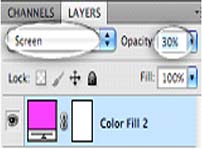
Set it’s blending mode to Screen, and it’s Opacity to 30%.

Here’s how your final photo should end up looking.

And your layers panel should end up looking like the image above.
Below are a couple more example using exactly the same steps.

Use the share buttons below if you found this useful, and don’t forget to leave a


How to Use Clipping Masks.in Photoshop

In this tutorial we will create a composition together, using clipping masks techniques. We will see examples of how to use a clipping mask and what we can do with it (also using a Vector Mask)

Aug 23, 2011

Mengatasi Bunyi hilang Saat Windows Startup/Shutdown


Mungkin sobat pernah mengalami hilangnya bunyi  Windows Startup/Shutdown
Hal itu di karenakan banyak hal,, adanya system yg eror pada computer
tapi jangann bingung dulu ,, di sini saya akan berbagi tips cara mengatasinya
tak perlu panjang lebar???/
pertama  masuk ke panel control > Sounds, Speech, and Audio Devices
                                                  > Sounds  and Audio Devices
lihat gambit di bawah

Lalu pilih Sounds dan perhatikan
kolom di bawahnya 

untuk start langsung klik gambar di atas
dan tinggal sobat pilih Lalu pilih Sounds 
yang sobat sukai

untuk Shutdown pilih exit windows
dan pilih kolom pilihan di bawahnya

Nah sudah bias kan gampang sekali bukankamu jg bias mengganti dengan suara yg lain sesuka kamu tapi format Sounds harus  wav,,,

Di bawah ini Sounds wav yg biasa sobat downloand


WindowsNavigationStart.wav.


daftar isi